Software Install

Here we will cover the software required to program PIC microcontrollers and how to install it. We will be covering a Windows install but the process should be fairly similar for Linux and Mac.

What you will need

Optional

MPLAB X IDE

This is the integrated development environment for PIC microcontrollers. In the program we will be setting up projects, writing the code, programming and debugging the PIC microcontroller.

MPLAB XC8 Compiler

Since the MPLAB X IDE only ships with an Assembler compiler we are going to need to install a C compiler. This is where the XC8 Compiler comes into play. It translate C code to Assembler instructions and handles most of the overhead for us while still giving us the option to modify the overhead if needed.

Notepad++

One of the few reasons we have not switched to Linux. Simply put, it is a text editor with syntax highlighting for almost any programming language or file format and advanced system search feathers. It is also lightweight meaning it opens files fast. We will not be covering Notepad++ install but it is worth a mention for the utility it provides for any software developer.

Software Download

MPLAB X IDE

The link provided above will take you to the download page for the MPLAB X IDE. Scroll down until you find the (1) download section then (2) locate the MPLAB X IDE for your operating system then (3) click the download link.
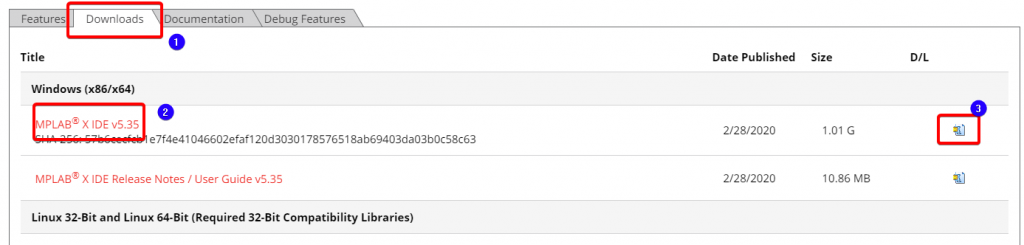
MPLAB X IDE download


MPLAB XC8 Compiler

The processes is identical to that of MPLAB X IDE. Used the provided link above for MPLAB XC8 Compiler. Scroll down to the (1) download section (2) locate the MPLAB XC8 Compiler installer for your operating system and (3) click download.

Software install

MPLAB X IDE

After opening the installation it is mostly click next and agreeing to the licence agreement. There are a few screen that will be mentioned to configure the installation.
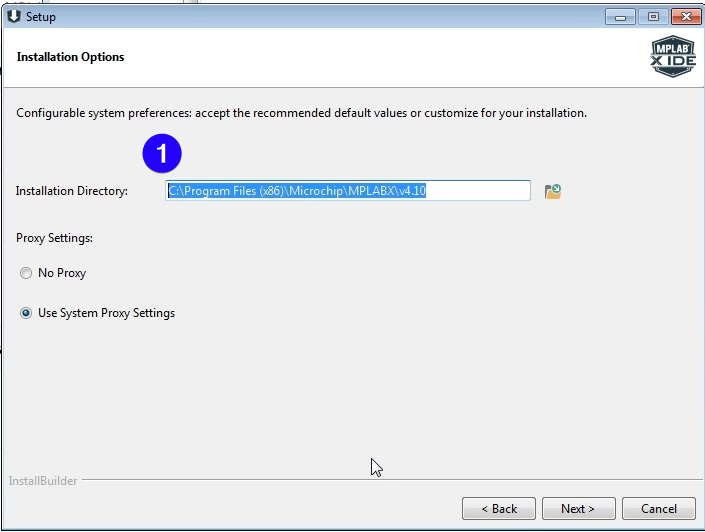
  1. Here the the program will be installed on the computer.
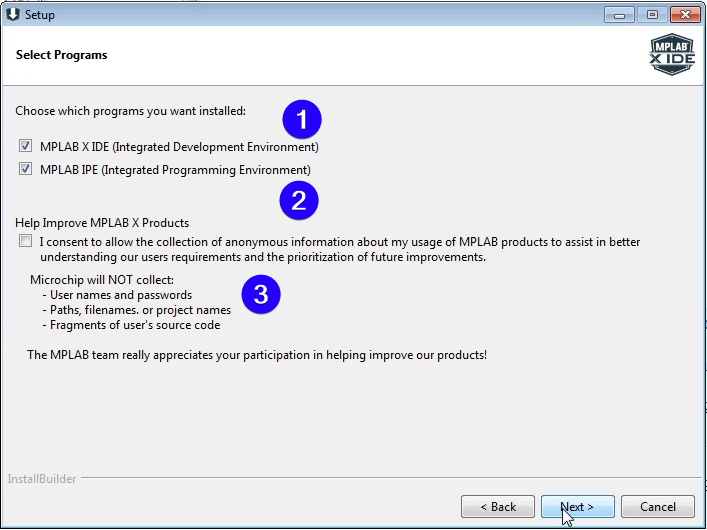
MPLAB X IDE Setup Screen 1


  1. The installation of the MPLAB X IDE. This is the coding for the interface. This is required install.
  2. The installation of MPLAB IPE. This is for production to mass flash PIC microcontrollers. This is a optional install.
  3. If you want to give information about usage of the MPLAB software to Microchip. Also optional.
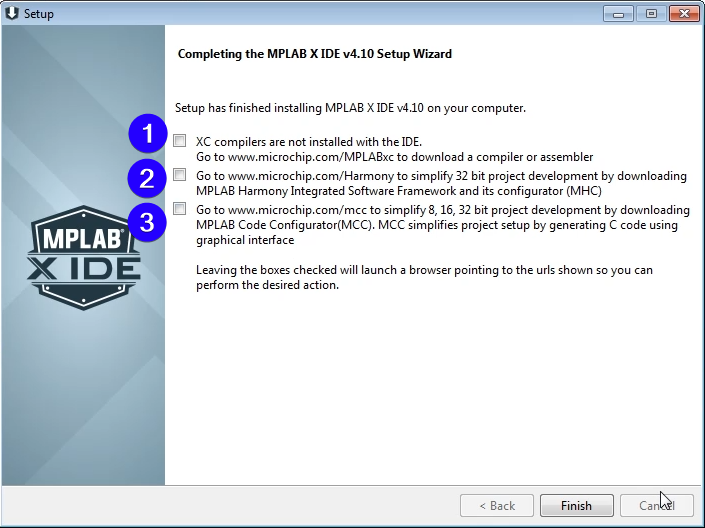
MPLAB X IDE Setup Screen 2


  1. This will open the download page for the XC compilers. Since we already downloaded the compiler, we don't need to check this.
  2. This will open the download page for MPLAB Harmony tools. This is for 32-bit PIC microcontrollers. We wont't be using these.
  3. This will open the download page for MPLAB Code Configurator. This is a code auto generator. We also won't be using this.
MPLAB X IDE Setup Screen 3


MPLAB XC8 Compiler

This is similar to installing MPLAB X IDE. Again it is mostly click next and agreeing to the licence agreement. There are a few screen that will be mentioned to configure the installation.
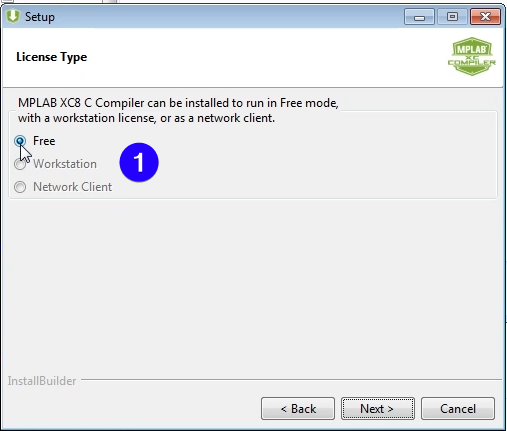
  1. Options to pick the type of licence for the XC8 compiler you want to use. We will be using the free version.
MPLAB XC8 Setup Screen 1


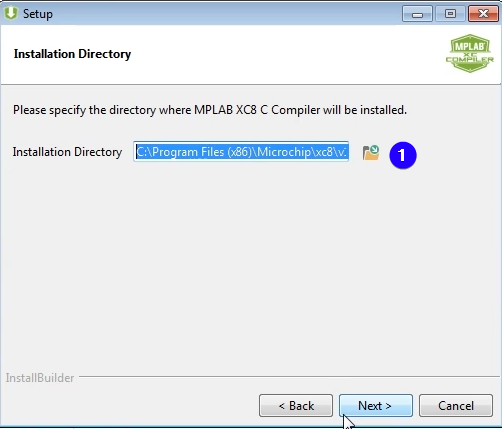
  1. Where the the program will be installed on the computer. It is suggested to put it in the same drive as where MPLAB X IDE is installed.
MPLAB XC8 Setup Screen 2


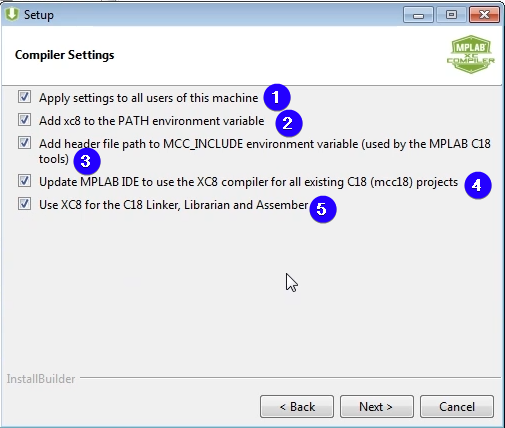
  1. If you want to add the settings to all users on the desktop. Optional.
  2. Allows the compiler to be run from anywhere on the desktop. Highly recommended.
  3. Backwards compatibly for the C18 compiler header files.
  4. Update all imported C18 project to XC8 projects
  5. Override C18 Linkers, Librarian and Assember with XC8
MPLAB XC8 Setup Screen 3


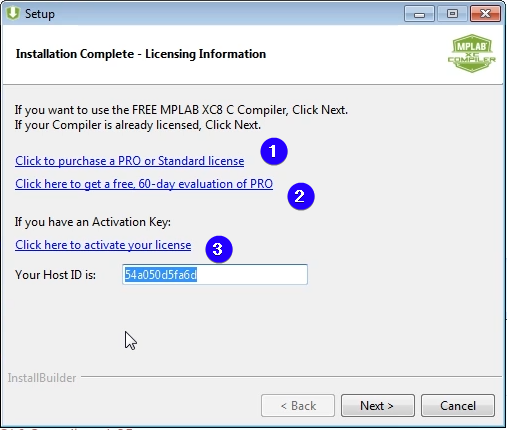
  1. Link to buying a Pro or standard license for the compiler. Not required.
  2. Link to setup a trial version of the of the Pro compiler. Optional.
  3. Link to the license activation. Host ID is if you had a license before and would like to reuse it. Otherwise leave as default
MPLAB XC8 Setup Screen 4


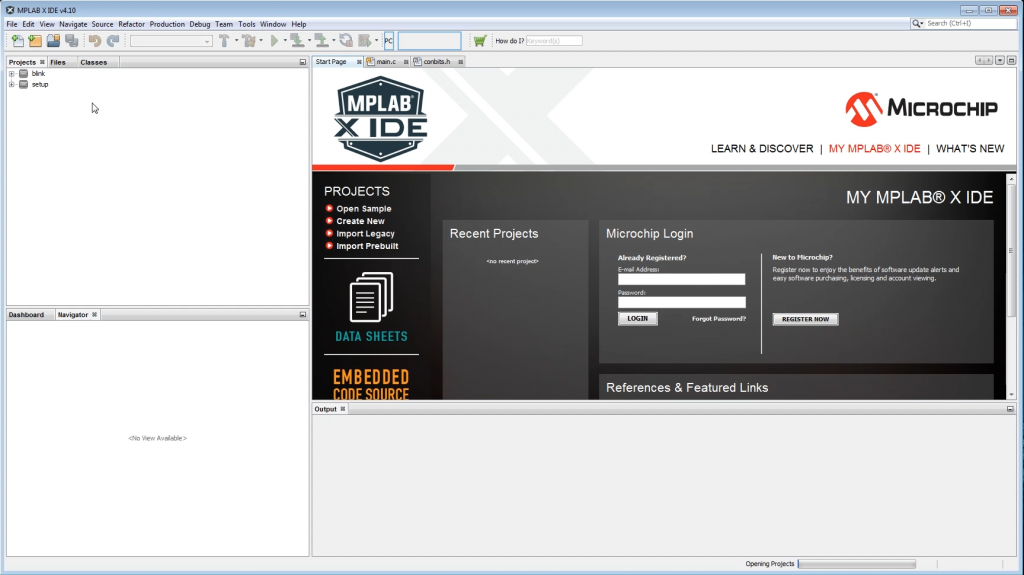
The End Result

MPLAB X IDE application screen


Now you are ready to to start programming PIC microcontrollers.